How to Install and Configure Superdesk Publisher with Superdesk
This guide describes the functions of Superdesk Publisher and Superdesk, along with the required steps to run both applications concurrently in a production environment on two different servers. (However, both applications can also work on a single machine.)
This guide assumes that you have:
- A working instance of Superdesk
- A working instance of Superdesk Publisher
For this guide, we will assume your Superdesk server runs on superdesk.example.com and your Publisher server
runs on example.com.
Install the Superdesk Publisher Component in Superdesk
Login to the server where Superdesk is installed.
Superdesk Publisher Component is a JavaScript component that is a separate dependency and can be included in Superdesk to manage your Superdesk Publisher application.
To add this component as a dependency edit /opt/superdesk/client/package.json and include the
Superdesk Publisher repository:
1 2 3 4 | "dependencies": {
....,
"superdesk-publisher": "superdesk/superdesk-publisher#2.0"
}
|
You can replace master with whichever branch you require.
Next, run the following command to install the package.json dependencies:
1 | npm install
|
Update Your Superdesk Configuration File
Inside /opt/superdesk/client directory on your server open the superdesk.config.js
and integrate the following code with your existing configuration:
1 2 3 4 5 6 7 8 9 10 11 12 13 14 15 16 17 18 19 20 21 | apps: [
....,
'superdesk-publisher'
],
importApps: [
....,
'superdesk-publisher'
]
publisher: {
protocol: 'http', /* http or https */
tenant: '', /* tenant - semantically subdomain, '' is allowed */
domain: 'example.com', /* domain name for the publisher */
base: 'api/v2', /* api base path */
wsProtocol: 'wss', /* ws or wss (websocket); if unspecified or '' defaults to 'wss' */
wsDomain: 'WebSocketDomain.com', /* domain name (usually domain as above) */
/* e.g.: example.com, abc.example.com */
/* tenant, as above, is NOT used for websocket */
wsPath: '/ws', /* path to websocket root dir */
wsPort: '8080' /* if not specified: defaults to 443 for wss, 80 for ws */
},
|
Finally, rebuild the front-end by running this command:
1 | grunt build
|
Update Your Publisher Configuration File
Login to the server where Publisher is installed.
Edit (or create, if it doesn’t already exist) the file /var/www/publisher/.env.local and add the following:
1 2 | SUPERDESK_SERVERS='["superdesk.example.com"]'
CORS_ALLOW_ORIGIN=http://superdesk.example.com
|
Note
For CORS_ALLOW_ORIGIN, it is important to include the protocol your Superdesk server uses (http or https) and to not have a trailing slash after your domain name (e.g. your value should not be http://superdesk.example.com/).
Clear the Publisher server cache for the change to take effect:
1 | php bin/console cache:clear
|
That’s it! Now, when you log in to Superdesk in the left hamburger menu, you will see the Publisher Settings menu item available:
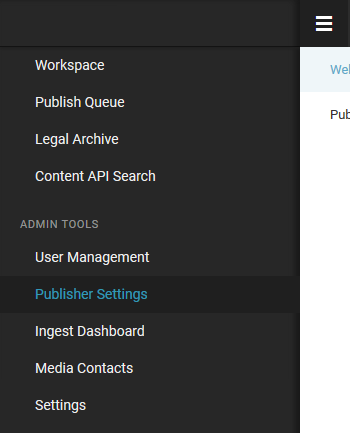
Configure Subscriber to Publish Content from Superdesk to Superdesk Publisher
You can read more about this in the official Superdesk Publisher documentation.